ROS 2#
Connect the game or ACRES Core to ROS 2 Humble. The bridge publishes the topics, the services and the action of the simulated Polaris.
Warning
Start each ROS 2 node of this workspace in a shell with the DDS loopback fence (source ROS/Env/setup_env.sh).
The command topics have the names of the real Polaris. Outside the fence, a command can go to a real vehicle on the same network.

The DDS Loopback Fence#
ROS 2 nodes find each other on the network automatically.
The DDS loopback fence is a set of environment settings that keeps all ROS 2 traffic on the address 127.0.0.1.

The file ROS/Env/dds_safety.sh has the settings. Two paths apply it:
- The script
ROS/Env/setup_env.shapplies it when you source the script. - The conda hook applies it each time you activate the environment
ros2.
Build the Workspace#
Before you start
- Linux with
bash, and Miniconda in~/miniconda3. For a different folder, setCONDA_ROOT. - Access to the conda channels
robostack-humbleandconda-forge.
The build does not use the game. The package acres_core_sim compiles the sources of ACRES Core.
-
Make the conda environment
ros2with ROS 2 Humble from RoboStack. -
Install the conda hooks of the fence. Run the script again after you change a file in
ROS/Env. -
Open a shell with the environment and the fence.
-
Make sure that the fence operates. The check starts a talker and a listener and records each UDP packet.
Expected result
The last line is
PASS: DDS traffic stays on loopback.Warning
Do not start a node if the last line is
FAIL. Install the conda hooks again, open a new shell and do the check again. -
Build all packages.
-
Source the script again to load the workspace.
-
Run the tests. They use a substitute for the game and do not start it.
The Polaris Description#
The package purdue_ranger has the URDF file of the real Polaris. It has a proprietary license and is not in the repository.
The bridge does not need it. Without it, the static frames of the URDF and the model in RViz are not available.
| Launch File | Without purdue_ranger |
|---|---|
acres_sim sim_bridge.launch.py |
Use vehicle:=auto or vehicle:=maxxum. The default vehicle:=polaris stops. |
acres_core_sim core_sim.launch.py |
Stops. Start core_sim and sim_bridge with ros2 run and ros2 launch. |
acres_description launch files |
Stop. |
Connect the Game#
The procedure uses three shells: shell 1 for the simulator, shell 2 for the bridge and shell 3 for the commands.
Source ROS/Env/setup_env.sh in shells 2 and 3.
| Socket | Option of the Game | Port | Argument of the Launch File |
|---|---|---|---|
| Sensor stream | -SensorStream= |
5601 | sensor_port |
| Vehicle bridge | -RlPort= |
5556 | rl_port |
| Simulator control channel | -SimControl= |
5600 | control_port |
-
In shell 1, start the game with the Polaris and the three sockets.
-
In shell 2, start the bridge.
Expected result
Add
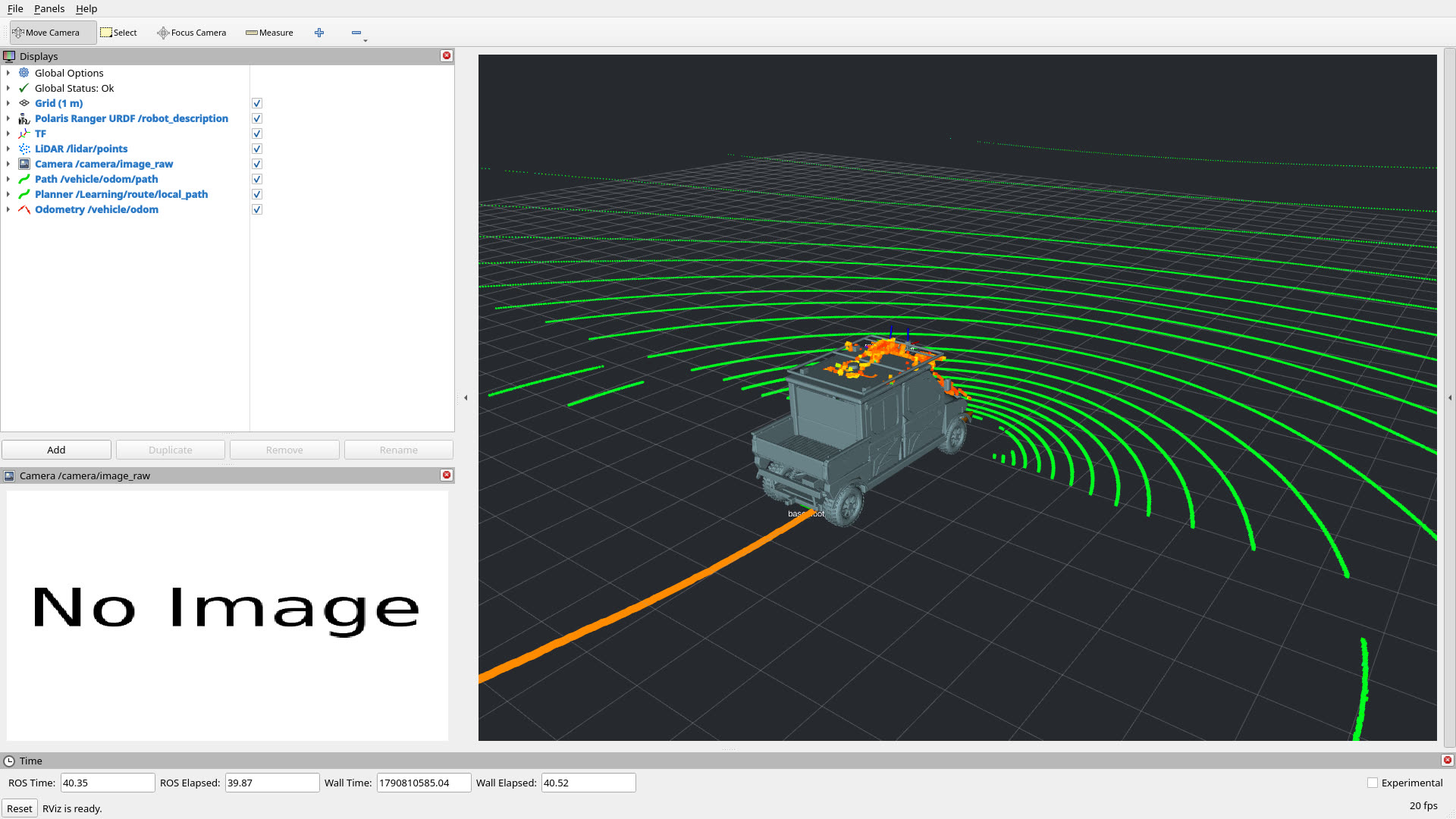
rviz:=trueto see the LiDAR cloud and the camera image in RViz 2.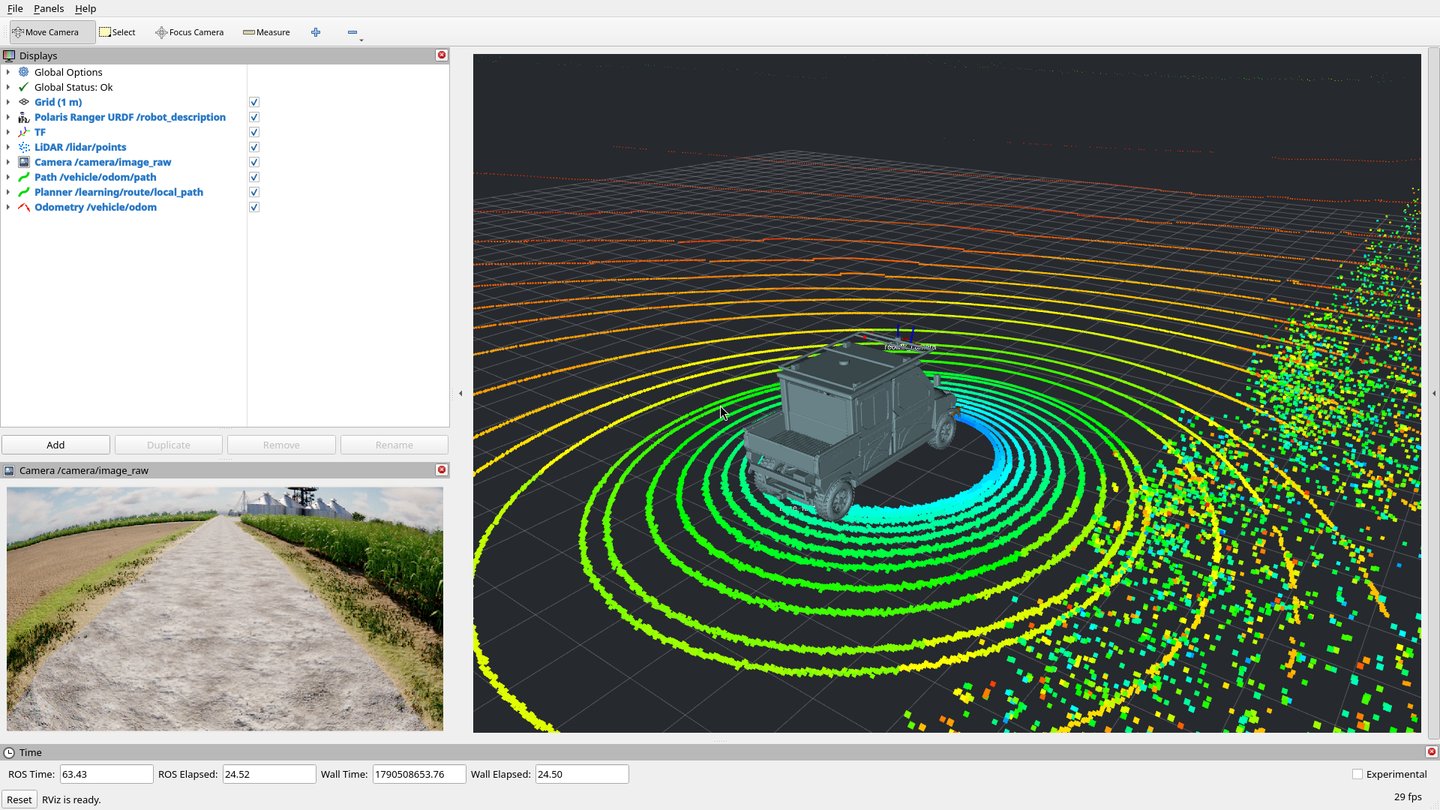
-
In shell 3, list the topics.
Expected result
The list has the sensor topics, the drive-by-wire topics and the simulator topics:
/camera/image_raw [sensor_msgs/msg/Image]
/clock [rosgraph_msgs/msg/Clock]
/lidar/points [sensor_msgs/msg/PointCloud2]
/oxts/fix [sensor_msgs/msg/NavSatFix]
/oxts/imu [sensor_msgs/msg/Imu]
/sim/episode [acres_interfaces/msg/Episode]
/sim/ground_truth/odom [nav_msgs/msg/Odometry]
/vehicle/enable [std_msgs/msg/Empty]
/vehicle/odom [nav_msgs/msg/Odometry]
/vehicle/ulc/cmd [ds_dbw_msgs/msg/UlcCmd]
/vehicle/ulc/report [ds_dbw_msgs/msg/UlcReport]
...
Topics gives each topic with its type, rate, QoS and frame.
Drive with the Drive-by-Wire#
The Polaris starts in the gear L with the drive-by-wire off. A command has an effect only after you enable the drive-by-wire. The simulator stops a subsystem 0.1 s after its last command, as the real vehicle does. Send the commands continuously.
-
Enable the drive-by-wire.
-
Send a speed command of 1.5 m/s at 50 Hz for 10 s.
-
Disable the drive-by-wire.
Control the Simulation#
The bridge offers the services of simulation_interfaces.
| Command | Result |
|---|---|
ros2 service call /get_simulation_state simulation_interfaces/srv/GetSimulationState |
The state: 1 for play, 2 for pause. |
ros2 service call /set_simulation_state simulation_interfaces/srv/SetSimulationState "{state: {state: 2}}" |
Pause the world. The game continues to render. |
ros2 service call /step_simulation simulation_interfaces/srv/StepSimulation "{steps: 120}" |
Advance 120 physics steps, which is 1 s. The response arrives after the bridge published the sensor data of the steps. |
ros2 service call /set_simulation_state simulation_interfaces/srv/SetSimulationState "{state: {state: 1}}" |
Play again. |
ros2 service call /acres/farm_state acres_interfaces/srv/FarmState "{edge_band_m: 4.0, fields: [48]}" |
The ground truth of field F48: crop, crushed area, harvested area, soil water. |
ros2 service call /set_simulation_state simulation_interfaces/srv/SetSimulationState "{state: {state: 3}}" |
Stop the game. |
Services and Actions gives each service with its fields and result codes.
Use ACRES Core in Place of the Game#
The executable core_sim runs the Polaris of ACRES Core behind the same three sockets. It needs no game and no GPU.
The bridge and all commands are the same.
-
In shell 1, start ACRES Core.
-
In shell 2, start the bridge with the same command as for the game.
-
Run ACRES Core faster than real time with the option
--rate.Expected result
ros2 topic hz /clockshows approximately 1200 Hz, andros2 topic hz /lidar/pointsshows approximately 100 Hz.
Next Steps#
-
Each topic with its type, rate, QoS and frame.
-
A control loop that steps the simulation.
-
The Polaris, the Maxxum and sessions with several vehicles.