First Drive#
This page goes from the menu to a drive with the Maxxum on a field and then ends the session. The session writes a session folder with the configuration and the logs.
Before You Start#
- Build the packaged game. Refer to Build the Game.
- Use a workstation with a display, a keyboard and a mouse.
- Keep 500 MB of the disk free. A session with the default sensors writes approximately 10 MB each second.
Start the Session#
-
Start the game in the repository root.
Expected Result
The game shows the menu with the buttons New Simulation, Replay Simulation, Run Optimizer, Pilot and Quit.
-
Select New Simulation.
Expected Result
The game shows the tabs of the session. The line above the buttons shows
Configuration is physically consistent.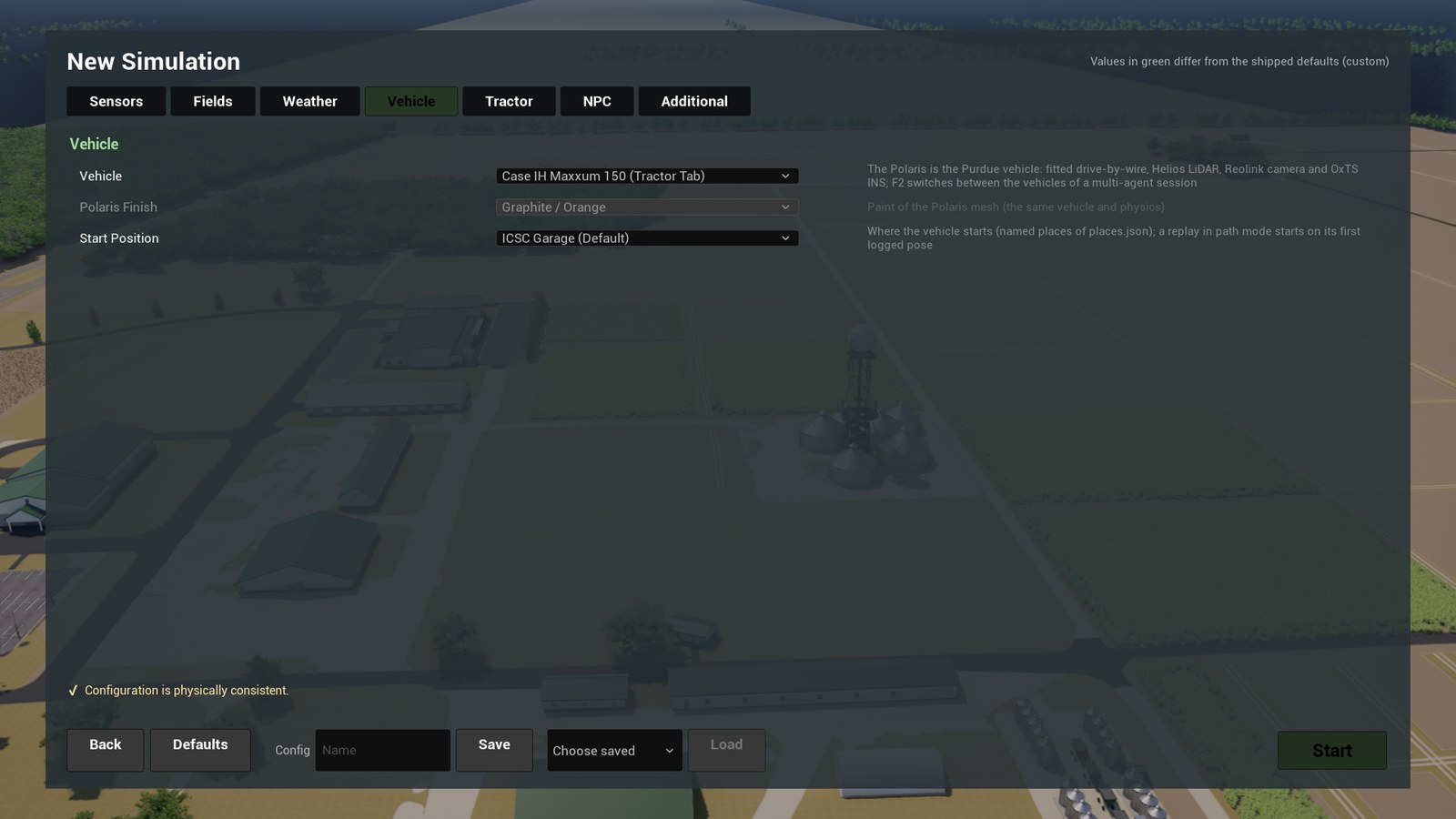
-
Keep the default values. The table gives the function of each tab.
Tab Content Sensors The camera, the LiDAR, the GNSS, the IMU and the CAN bus: on or off, rates, noise, delay and seed. Fields The crop, the soil and the start wetness of each field. The terrain brush. Weather The temperature, the wind, the sky and the rain. Vehicle The vehicle (Maxxum, Polaris or the two together), the paint of the Polaris and the start position. Tractor The chassis, the tyres, the engine, the drivetrain, the steering and the implement of the Maxxum. NPC The farm traffic and the farm workers. Additional The clock, the crop season, the render tier and the random seed. Note
The menu shows a value in green when it is different from the default. The menu examines the values against physical limits. Start is not available when a value has an error.
-
Select Start.
Expected Result
The map loads again. The Maxxum is in front of the ICSC garage. A box with the title
Controlsshows the most important keys for 12 s.
Note
New Simulation records the sensors and writes the session log. Pilot starts the same drive without sensors and without logs.
Drive to a Field#
-
Hold W to move forward. Push A and D to steer.
Note
The Maxxum starts in gear 10 with the engine at idle speed. It moves slowly when you hold no key. Hold S to brake.
-
Push ] to select a higher gear and [ to select a lower gear.
-
Move the mouse to turn the camera around the vehicle. Turn the mouse wheel to change the distance.
-
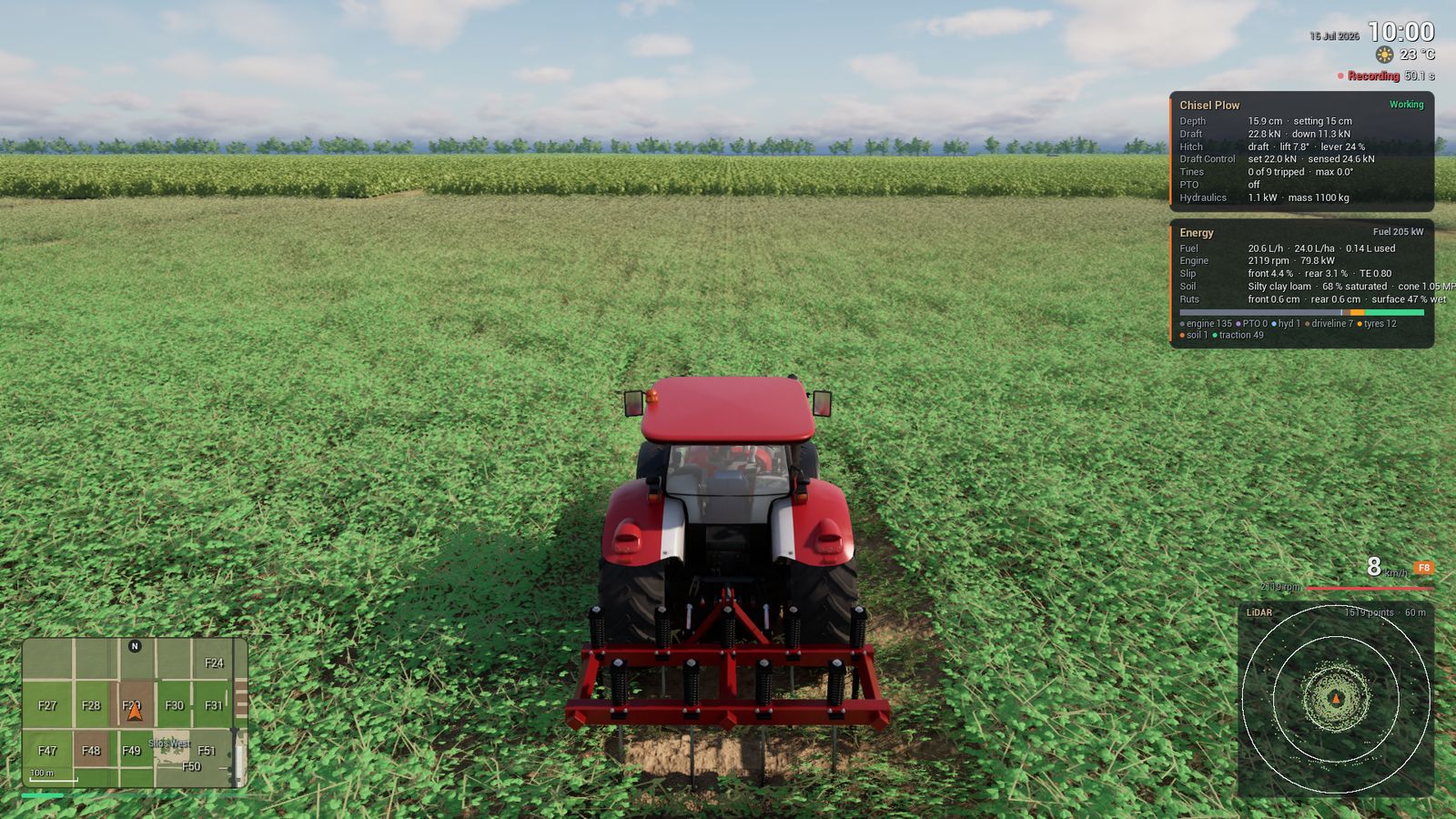
Drive to a field. The minimap shows the fields with their numbers and the vehicle as an orange arrow.
Expected Result
The number of the field shows above the minimap for some seconds, for example
Field F53. The tyres sink into the soil and the wheel slip increases. -
Hold Tab to see all keys.
These are the basic keys. Drive the Maxxum Tractor and Drive the Polaris Ranger give the full key tables.
| Key | Function |
|---|---|
| W | Throttle |
| S or Space | Brake |
| A, D | Steer to the left, steer to the right |
| [, ] | Gear down, gear up |
| V | Change between forward and reverse. Stop the vehicle first. |
| P | Park brake on or off |
| C | Change between the chase camera and the cab view |
| R | Put the vehicle back to its start pose |
| F6 | Start or stop a sensor episode |
| Tab | Show all keys while you hold the key |
| Esc | Pause |
Read the HUD#
The HUD shows information only when it is important.
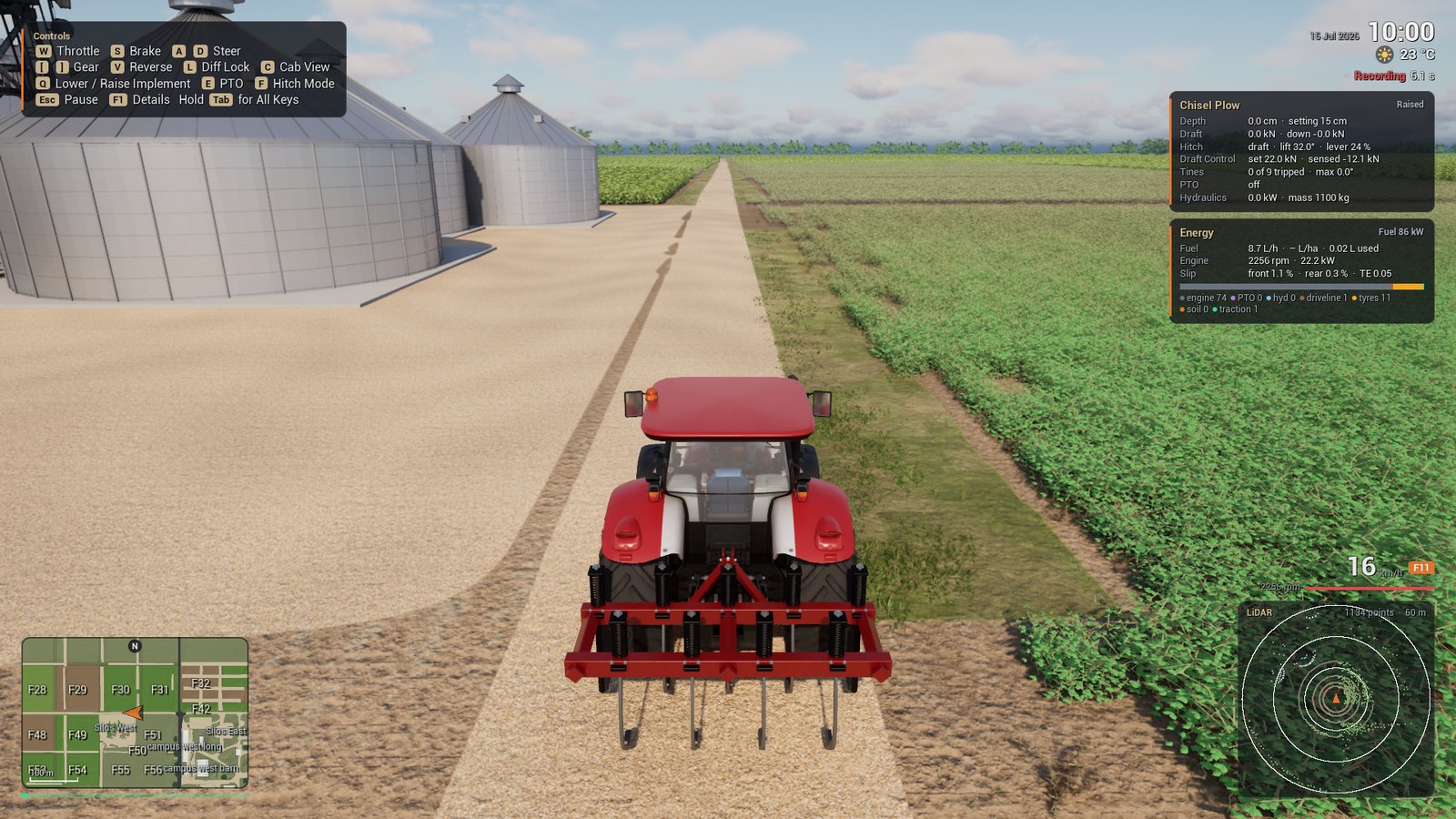
| Area | Content |
|---|---|
| Top left | The key help for the first 12 s. Hints, for example for the differential lock. Safety alerts. |
| Top right | The date, the clock and the weather. Below them the line Recording with the time of the sensor episode. |
| Right | The implement card and the energy card: depth, draft, hitch, fuel flow, engine speed and wheel slip. Push I to hide the cards. |
| Bottom left | The minimap with the field numbers, the north mark and a scale of 100 m. The bar below it shows the wheel slip. |
| Bottom right | The speed in km/h, the gear and the engine speed. During a recording, the LiDAR card shows the last scan from above. |
End the Session#
-
Push Esc.
Expected Result
The game shows
Pausedwith the buttons Resume, End Simulation and Quit. -
Select End Simulation.
Expected Result
The game closes the logs and shows the menu again.
-
Select Quit.
-
Find the session folder. The name has the date, the time and the mode of the session.
-
List the session folder.
Expected Result
-
Read the summary of the session.
Run the Packaged Game gives the content of each file of the session folder.
Next Steps#
- First Recorded Dataset: read the camera images and the LiDAR scans of a session.
- Drive the Maxxum Tractor: the gears, the hand throttle and the differential lock.
- Attach and Operate Implements: field work with the eight implements.
- Set Soil and Weather: rain, wet soil and the clock.