Collect Data#
This tutorial records data of the Maxxum, its implements and the Polaris in all formats of ACRES. It covers the session log, the sensor episodes, the episode log and a ROS 2 bag.
Before You Start#
- Build the packaged game. Refer to Build the Game.
- Do First Recorded Dataset. It shows how to read an image and a point cloud.
- Use a Python environment with
numpyandmcap, for example the conda environmenttorchenv. - Build the ROS 2 workspace if you record a bag. Refer to Build the ROS 2 Workspace.
- Keep 3 GB of the disk free for all sessions of this page.
- Do the commands in the repository root. Give absolute paths to the game.
The Kinds of Recording#
ACRES has four kinds of recording. One session can write all of them at the same time.

| Recording | Start | Content | Files |
|---|---|---|---|
| Session log | -SessionLog, or a menu session |
The state of each vehicle at 120 Hz: pose, speed, engine, wheels, implement, soil, fuel. | tractor.csv, session-summary.json, dbw.csv |
| Sensor episodes | -SensorRecord, or the key F6 |
The outputs of the sensor models: camera, LiDAR, GNSS, IMU, CAN, INS. Also the true state and the controls. | sensors/episode-NNN/ |
| Episode log | -EpisodeLog=, or the request record |
The states of all agents at 120 Hz, the farm events and the conditions. No images. | One MCAP file |
| ROS 2 bag | ros2 bag record |
The topics of the ROS 2 bridge. | One bag folder with an MCAP file |
A menu session of the modes New Simulation and Replay Simulation writes the session log always. It also records the sensors that are on in the tab Sensors. The mode Pilot writes no logs.
Record the Maxxum with an Implement#
This session records the session log, the sensor episodes and the episode log of the Maxxum. The Maxxum pulls the chisel plow on field F29. A drive script drives it, thus the session runs unattended.
-
Write the drive script into the file
plow.json.{ "frame": "world", "path": [[190.5, -35.05], [150, -35.2], [100, -35.2], [76, -35.2], [68, -36.5], [63, -40], [61, -45], [60.5, -52], [60.5, -140]], "keys": [ {"t": 0, "gear": 11, "speed_kmh": 0, "raise": true, "hitch_mode": "draft", "draft_setpoint_kn": 22}, {"t": 1.5, "speed_kmh": 16}, {"t": 26, "speed_kmh": 8, "gear": 8}, {"t": 38, "raise": false}, {"t": 60, "exit": true} ] } -
Start the session.
Packaged/Linux/Acres.sh -VehicleDemo -RenderOffscreen -Implement=chisel_plow \
  -VehicleSpawnU=625 -VehicleSpawnV=477 -VehicleSpawnYaw=180 -DriveScript="$PWD/plow.json" \
  -FarmInitialTheta=0.8 -EnvHour=10 \
  -SessionLog -SensorRecord -EpisodeLog="$PWD/out/maxxum-plow/episode.mcap" \
  -VehicleOutput="$PWD/out/maxxum-plow"
Expected Result
The game stops after the drive script ends at 60 s. The log contains these lines.
ACRES_IMPLEMENT_READY id=chisel_plow keys=67 mass_kg=1100.0 com_m=(-1.347, 0.000, 1.066) width_m=2.70 ... ACRES_SENSOR_START episode=/home/user/ACRES/out/maxxum-plow/sensors/episode-001 camera=1 lidar=8x180 gpu_lidar=1 ... ACRES_EPISODE_LOG_START /home/user/ACRES/out/maxxum-plow/episode.mcap ACRES_DRIVE_SCRIPT_DONE t=60.00 ACRES_EPISODE_LOG_STOP /home/user/ACRES/out/maxxum-plow/episode.mcap messages=15450 ACRES_SENSOR_STOP episode=/home/user/ACRES/out/maxxum-plow/sensors/episode-001 truth=7203 imu=7201 gnss=601 lidar=597 camera=594 can=2402 ins=0 lidar_points=804080 dropped_rows=0 camera_missed=6 camera_busy=0 lidar_busy=4 errors=0 -
List the session folder.
The session folder of this run uses 604 MB. The camera images use most of this space.
| Option | Function |
|---|---|
-Implement=chisel_plow |
Attaches the chisel plow. Attach and Operate Implements lists the eight implements. |
-FarmInitialTheta=0.8 |
Sets the start water content of the soil: 0 is the wilting point, 1 is the field capacity. |
-EnvHour=10 |
Sets the local start time to 10:00. |
-SessionLog |
Writes the session log. |
-SensorRecord |
Records the sensor episodes. |
-EpisodeLog= |
Writes the episode log from the first physics step. |
-VehicleOutput= |
Sets the session folder. |
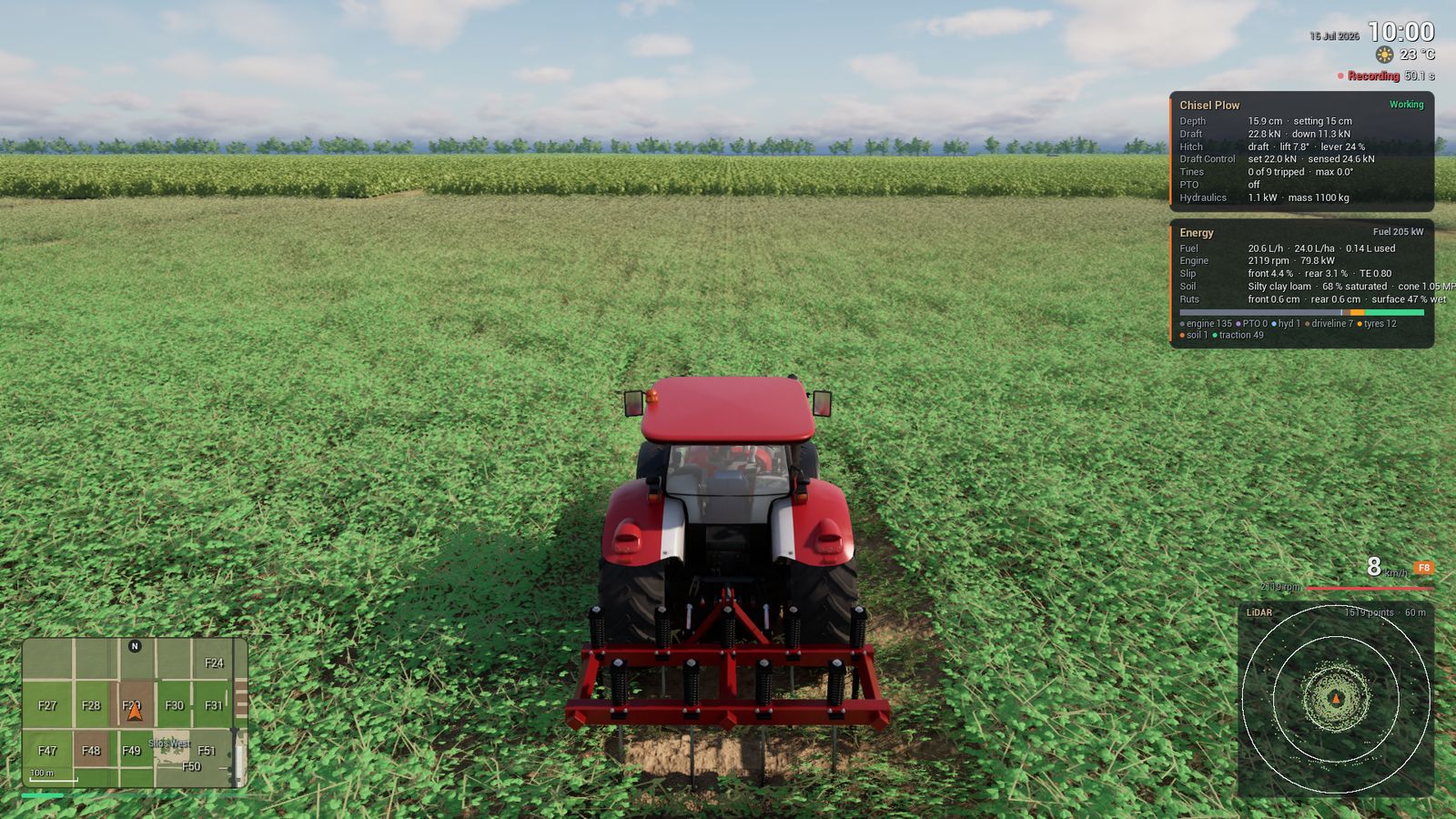
Read the Session Log#
The session log has one row for each physics step of the vehicle.
-
Write this program into the file
read_log.py.import csv with open("out/maxxum-plow/tractor.csv", newline="") as f: rows = list(csv.DictReader(f)) print(len(rows), "rows,", len(rows[0]), "columns") row = rows[6000] # the row at 50 s for key in ("time_s", "speed_mps", "gear", "rpm", "fuel_lph", "implement", "implement_depth_m", "sensed_draft_n", "hitch_mode", "soil_class", "rl_slip"): print(f"{key:18} {row[key]}") -
Run the program.
| File | Content |
|---|---|
tractor.csv |
120 rows for each second. The columns give the pose, the motion, the engine, the controls, the four wheels, the energy flows, the implement and the soil. |
session-summary.json |
The totals of the session: rows, time, distance, fuel, maximum slip and maximum sinkage. |
dbw.csv |
Only for the Polaris: the drive-by-wire reports at 50 Hz. |
farm-*, theta.f32, water-depth.f32 |
The state of the farm at the end of the session. |
Session Log describes each column.
Read the Sensor Episodes#
The sensor recorder writes one folder for each episode: sensors/episode-001, sensors/episode-002.
An episode has one file for each stream.
| Stream | File | Default Rate | Content | Option to Set It Off |
|---|---|---|---|---|
| Camera | camera/front_<microseconds>.png, camera.jsonl |
10 Hz | Images of 896 x 512 pixels with the lens and sensor model. | -SensorNoCamera |
| LiDAR | lidar/scan_<microseconds>.ply or .pcd, lidar.jsonl |
10 Hz | Point clouds with intensity, ring, class and return number. | -SensorNoLidar |
| GNSS | gnss.jsonl |
10 Hz | The fix with its type, its errors and the satellite counts. | -SensorNoGnss |
| IMU | imu.jsonl |
120 Hz | The specific force and the angular velocity in the body frame. | -SensorNoImu |
| CAN | can.jsonl |
20 Hz | The J1939 frames of the Maxxum: one feedback frame and one command frame in each cycle. | -SensorNoCan |
| INS | ins.jsonl |
100 Hz | Only for the Polaris: the fix, the velocity and the UTM odometry. | -SensorNoIns |
| Truth | truth.jsonl |
120 Hz | The true pose, velocity and wheel states. | |
| Actions | actions.jsonl |
120 Hz | The controls of each physics step. |
The file episode.json is the manifest of the episode. It gives the calibration, the sensor parameters, the counts
and the drop counters. The file sensors-config.json is the sensor configuration of the episode.
These options change the recording. Sensors and Rigs gives the full procedure.
| Option | Function |
|---|---|
-SensorCameraHz=, -SensorLidarHz=, -SensorGnssHz=, -SensorImuHz= |
Set the rate of a sensor in Hz. |
-SensorCameraWidth=, -SensorCameraHeight= |
Set the size of the camera image in pixels. |
-SensorCameraIdeal |
Records camera images without distortion, noise and rolling shutter. |
-SensorNoNoise |
Sets the noise of all sensors to zero. |
-SensorSeed= |
Sets the seed of the sensor noise. The same seed gives the same noise. |
-SensorOutput= |
Sets the folder of the episodes. The default is the folder sensors of the session folder. |
-SensorConfig= |
Uses a different sensor configuration file. |
Start and Stop an Episode with the Key#
-
Start a session with a window, with or without
-SensorRecord. -
Push F6 to start an episode. The HUD shows the line
Recordingwith the time of the episode. - Drive the part that you want to record.
- Push F6 to stop the episode. The recorder writes the remaining files and
episode.json. - Push F6 again to start the next episode. It goes into the next folder, for example
episode-002.
Examine an Episode#
Read the keys state, counts and dropped of episode.json after each recording.
python -c "import json; j = json.load(open('out/maxxum-plow/sensors/episode-001/episode.json')); print(j['state'], j['sensor_profile'], j['dropped'])"
Expected Result
| State | Meaning |
|---|---|
complete |
The recorder closed the episode without errors. |
complete_with_errors |
The recorder closed the episode. The key errors lists the problems, for example a LiDAR scan that was not complete at the stop. |
recording |
The episode did not close. The counts in the file are zero, but the rows and the images are on the disk. |
| Drop Counter | Meaning |
|---|---|
rows_queue_overflow |
The writer had 200000 rows in its queue. The recorder dropped a row. The disk is too slow. |
camera_missed |
A frame of the game came later than one camera period. The recorder did not take the camera samples in between. |
camera_busy |
A camera image was due while the earlier images were not complete. |
camera_encode_backlog |
Four encode tasks were in progress. The recorder dropped the image. |
lidar_busy |
A LiDAR scan was due while the earlier scans were not complete. |
A session in real time has drops when the frame rate of the game is low. In this run the recorder wrote 594 of 600 camera images and 597 of 601 LiDAR scans. A session in lockstep has no drops, because each step waits for the sensors. Refer to Lockstep Stepping.
The Sensor Profile Label#
The key sensor_profile of episode.json tells which sensor settings and render settings made the data.
| Label | Meaning |
|---|---|
tractor-default |
The default sensor rig of the Maxxum. No calibration against a real sensor exists for its values. |
polaris-calibrated |
The sensor rig of the Polaris with the calibrated sensor profile. |
A label with the suffix -reduced-6gb |
The low render tier recorded the data with reduced render settings. |
custom |
An option or a menu value changed the camera or the LiDAR, or the console changed the render settings. |
Note
The render tier changes only the main view. A recording camera uses the sensor profile, not the render tier.
A GPU with less than 11.5 GiB gets the low tier and the label suffix -reduced-6gb.
The key sensor_profile_detail gives the tier, the GPU memory and the render settings.
Do not mix episodes with different labels in one dataset.
Platforms and GPU Tiers gives the details.
Read the Episode Log#
The episode log is one MCAP file with ROS 2 messages. It has the states of all agents, but no sensor data.
-
Write this program into the file
mcap_summary.py.import sys from mcap.reader import make_reader with open(sys.argv[1], "rb") as f: summary = make_reader(f).get_summary() stats = summary.statistics print("duration", round((stats.message_end_time - stats.message_start_time) / 1e9, 3), "s") for channel_id, channel in sorted(summary.channels.items()): schema = summary.schemas[channel.schema_id].name print(channel.topic, schema, stats.channel_message_counts.get(channel_id, 0)) -
Run the program on the episode log.
Expected Result
duration 60.025 s
/sim/episode acres_interfaces/msg/Episode 1
/sim/agents acres_interfaces/msg/Agents 1
/sim/agent_states acres_interfaces/msg/AgentStates 7203
/sim/farm_events acres_interfaces/msg/FarmEvents 990
/sim/farm_stamps acres_interfaces/msg/FarmStamps 7193
/sim/conditions acres_interfaces/msg/Conditions 61
/sim/shifts acres_interfaces/msg/VehicleShifts 1
/sim/task acres_interfaces/msg/TaskStatus 0
The file of this run has a size of 12.3 MB for 60 s with one agent. Episode Log describes the topics and the messages.
Start and Stop the Episode Log during a Session#
The simulator control channel can start and stop the episode log at any time.
-
Start a session with the simulator control channel.
-
Send the requests from Python in a second terminal.
import sys
import time

sys.path.insert(0, "Tools/SimControl")
from sim_control import SimControl

ctl = SimControl(5600)
print(ctl.call("record", action="start", path="/home/user/ACRES/out/control/part-1.mcap"))
time.sleep(30)
print(ctl.call("record", action="stop"))
print(ctl.call("set_state", state=3))
Expected Result
The last request stops the game. The game closes all logs.
Without the key path, the game writes the file episode-NNNN.mcap into the session folder, for example
episode-0000.mcap.
Simulator Control Channel describes the request. The ROS 2 bridge gives the same
function as a service. Refer to Services and Actions.
Record the Polaris#
The Polaris records the sensor rig of the real vehicle: a LiDAR with 32 rings, the camera and an INS. This session drives the Polaris 75 m along the grass lane at the east edge of field F29.
-
Write the drive script into the file
lane.json. -
Start the session.
Packaged/Linux/Acres.sh -VehicleDemo -RenderOffscreen -Vehicle=polaris \
  -VehicleSpawnU=566 -VehicleSpawnV=470.5 -VehicleSpawnYaw=-90 -DriveScript="$PWD/lane.json" \
  -EnvHour=10 -SessionLog -SensorRecord -VehicleOutput="$PWD/out/polaris"
Expected Result
ACRES_SENSOR_PROFILE profile=polaris validated=1 changes=none ACRES_SENSOR_START episode=/home/user/ACRES/out/polaris/sensors/episode-001 camera=1 lidar=32x1800 gpu_lidar=1 ... ACRES_DRIVE_SCRIPT_DONE t=30.00 ACRES_SENSOR_STOP episode=/home/user/ACRES/out/polaris/sensors/episode-001 truth=3603 imu=3601 gnss=301 lidar=300 camera=299 can=0 ins=3002 lidar_points=11112340 dropped_rows=0 camera_missed=1 camera_busy=0 lidar_busy=1 errors=0 -
List the session folder.
Expected Result
out/polaris:
dbw.csv           farm-field.bin   farm-visuals.json  farm-weather.csv      theta.f32
farm-config.json  farm-fields.csv  farm-water.bin     sensors               tractor.csv
farm-events.csv   farm-state.json  farm-water.json    session-summary.json  water-depth.f32

out/polaris/sensors/episode-001:
actions.jsonl  camera.jsonl  episode.json  imu.jsonl  lidar        sensors-config.json
camera         can.jsonl     gnss.jsonl    ins.jsonl  lidar.jsonl  truth.jsonl
The recording of the Polaris is different from the recording of the Maxxum in these items.
| Item | Maxxum | Polaris |
|---|---|---|
| LiDAR | 8 rings x 180 columns. One PLY file with the returns of each scan. | 32 rings x 1800 columns. One organized PCD file with 57600 points for each scan. |
| LiDAR size | 35 KB for each scan | 0.9 MB for each scan |
| Camera | 896 x 512 pixels, 10 Hz, field of view 90 degrees | 896 x 512 pixels, 10 Hz, field of view 73.5 degrees, with the lens of the real camera |
| INS | No file | ins.jsonl at 100 Hz: fix, IMU, velocity and UTM odometry |
| CAN | can.jsonl at 20 Hz |
No frames |
| Drive-by-wire | No file | dbw.csv at 50 Hz in the session folder |
Label sensor_profile |
tractor-default |
polaris-calibrated |
The session folder of this run uses 600 MB: 293 MB for 299 images and 269 MB for 300 scans.
The file Acres/Content/Simulation/sensors_polaris.json contains the sensor rig of the Polaris.
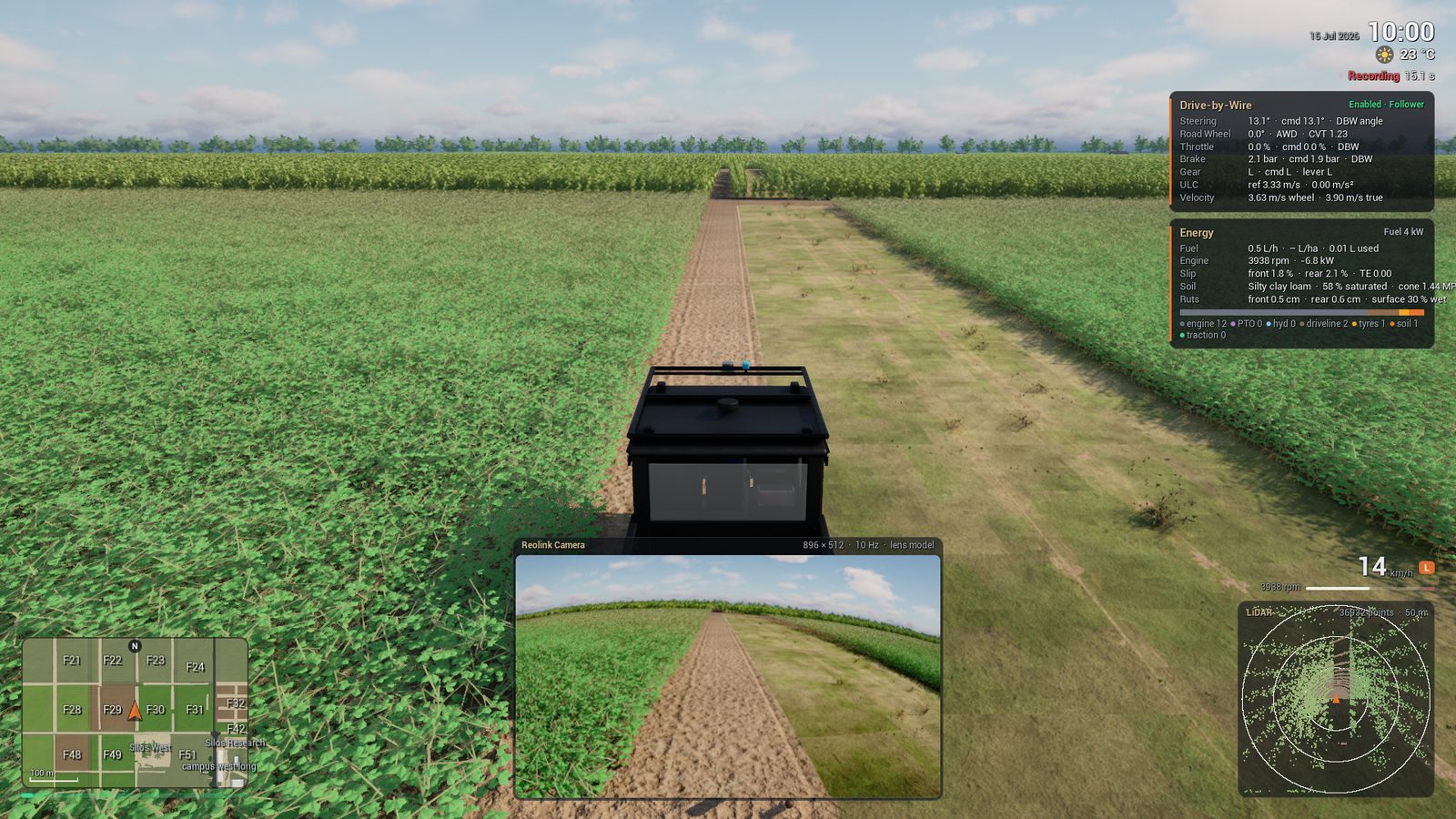
Record Two Vehicles in One Session#
The options -SessionLog and -SensorRecord apply to all agents of a session.
Each agent writes into its own folder in the session folder.
-
Write the file
two.json. It holds the Maxxum and ends the session after 24 s. -
Start the session with the two vehicles.
Packaged/Linux/Acres.sh -VehicleDemo -RenderOffscreen -Vehicles=maxxum,polaris \
  -RlPorts=5555,5556 -SensorStreams=5601,5602 -SimControl=5600 \
  -SensorRecord -SessionLog -VehicleOutput="$PWD/out/two" -DriveScript="$PWD/two.json"
Expected Result
ACRES_DRIVE_SCRIPT_DONE t=24.00 ACRES_SENSOR_STOP episode=/home/user/ACRES/out/two/maxxum/sensors/episode-001 truth=2892 imu=2890 gnss=241 lidar=70 camera=134 can=964 ins=2410 lidar_points=82672 dropped_rows=0 camera_missed=105 camera_busy=0 lidar_busy=171 errors=1 ACRES_SENSOR_STOP episode=/home/user/ACRES/out/two/polaris/sensors/episode-001 truth=2892 imu=2890 gnss=241 lidar=72 camera=134 can=0 ins=2410 lidar_points=3030056 dropped_rows=0 camera_missed=105 camera_busy=0 lidar_busy=169 errors=2 -
List the folders of the agents.
CAUTION
This run lost 44 % of the camera images and 71 % of the LiDAR scans. Two cameras and two LiDAR sensors made
the game slow: 5 frames for each second on the test workstation. The counters camera_missed and
lidar_busy show the loss. A dataset with such counters is not complete.
Use one of these methods to prevent the loss.
| Method | Procedure |
|---|---|
| Record one camera only | Give one agent a sensor overlay that sets its camera off. Refer to Run Several Vehicles. |
| Decrease the rates | Use -SensorCameraHz= and -SensorLidarHz=. |
| Record in lockstep | Each step waits for the sensors. Refer to Lockstep Stepping. |
| Render later | Record an episode log first. Refer to Render Later. |
A vehicle with a sensor stream also writes the file ins.jsonl, because the stream needs the INS.
An episode log of this session contains the two agents in one file.
Run Several Vehicles describes the agents file, the ports and the worked example with the
Maxxum at field work and the Polaris on the lanes.
Record without a Driver#
A recording session must run without a person at the keyboard. Three drivers can do this.
| Driver | Option | Use |
|---|---|---|
| Drive script | -DriveScript= |
Timed controls, a path, implement controls and the end of the session. |
| Replay | -ReplayFile=, -ReplayMode= |
Drives a logged session or a command file again. Refer to Replay. |
| Bridge client | -RlPort= |
A program or the ROS 2 bridge sends commands. Refer to Vehicle Bridge. |
A drive script is a JSON file with a list keys. Each key has a time t in seconds of physics time.
A value stays active until a later key sets it again.
| Key | Unit | Function |
|---|---|---|
speed_kmh |
km/h | The speed that the script holds with the throttle and the brake. |
gear |
The gear of the Maxxum, from 1. | |
steer |
deg | A fixed steering angle, positive to the left. Without this key the script follows the path. |
raise |
true lifts the implement. false puts it into the soil. |
|
hitch_mode |
position, draft or float. |
|
draft_setpoint_kn |
kN | The draft that the hitch control holds in the mode draft. |
pto |
true starts the PTO. |
|
camera |
deg, deg, m | The view: yaw, pitch and distance of the chase camera. |
exit |
true ends the session. The game closes all logs. |
The list path gives the points of the path in metres. With "frame": "world" the points are world coordinates:
x to the east, y to the south. Without it the points are relative to the start pose: x forward, y to the left.
Record the Same Drive Again with a Replay#
A replay drives a logged session again. Use it to record the same drive with different sensors or weather.
A replay does not stop the game at its end. A drive script with only the key exit stops the session.
-
Write the file
exit.json. -
Replay the session of First Recorded Dataset as a path replay, with the camera only.
Packaged/Linux/Acres.sh -VehicleDemo -RenderOffscreen \
  -ReplayFile="$PWD/out/first-dataset" -ReplayMode=path -DriveScript="$PWD/exit.json" \
  -SensorRecord -SensorNoLidar -SessionLog -VehicleOutput="$PWD/out/replay-dataset"
Expected Result
-
Read the tracking result of the replay.
The vehicle starts on the first logged pose and follows the logged path. In this run the path error was below 1 mm. Replay describes the replay modes and the format of a command file.
CAUTION
End a recording session with the key exit of a drive script, with End Simulation or with one Ctrl+C.
A second interrupt signal stops the game immediately. The game then does not write session-summary.json,
and episode.json keeps the state recording with counts of zero.
Record a ROS 2 Bag#
A bag records the topics that the ROS 2 bridge publishes. The bridge needs the sensor stream of the vehicle.
WARNING
Do all ROS 2 commands in a terminal with the DDS loopback fence (source ROS/Env/setup_env.sh).
Do not replay the command topics of a bag (/vehicle/*/cmd, /vehicle/enable) outside the fence.
The real vehicle can move.
-
Start the game with the sensor stream, the vehicle bridge and the simulator control channel of the Polaris.
-
Start the ROS 2 bridge in a second terminal.
-
Record the topics in a third terminal for 22 s. The option
-s mcapselects the MCAP format. -
Examine the bag.
Expected Result
Files: bag_0.mcap Bag size: 483.6 MiB Storage id: mcap Duration: 21.846872511s Messages: 13131 Topic information: Topic: /camera/camera_info | Type: sensor_msgs/msg/CameraInfo | Count: 218 | Serialization Format: cdr Topic: /camera/image_raw | Type: sensor_msgs/msg/Image | Count: 219 | Serialization Format: cdr Topic: /clock | Type: rosgraph_msgs/msg/Clock | Count: 2626 | Serialization Format: cdr Topic: /tf | Type: tf2_msgs/msg/TFMessage | Count: 2188 | Serialization Format: cdr Topic: /lidar/points | Type: sensor_msgs/msg/PointCloud2 | Count: 219 | Serialization Format: cdr Topic: /oxts/fix | Type: sensor_msgs/msg/NavSatFix | Count: 2188 | Serialization Format: cdr Topic: /oxts/imu | Type: sensor_msgs/msg/Imu | Count: 2188 | Serialization Format: cdr Topic: /tf_static | Type: tf2_msgs/msg/TFMessage | Count: 2 | Serialization Format: cdr Topic: /vehicle/odom | Type: nav_msgs/msg/Odometry | Count: 2188 | Serialization Format: cdr Topic: /vehicle/steering/report | Type: ds_dbw_msgs/msg/SteeringReport | Count: 1095 | Serialization Format: cdr -
Stop the bridge and the game with Ctrl+C.
A bag has no compression for the camera images and the LiDAR clouds. The bag of this run uses 22 MB for each second. Topics lists all topics of the bridge. First ROS 2 Session gives the full procedure for the bridge.
Render Later#
The camera and the LiDAR make a session slow. Render-later divides the work into two steps. The first step records only an episode log. The second step replays the episode log in the game and records the sensors.
-
Record an episode log without sensors. Use one of these methods.
Method Page The game in real time with -EpisodeLog=This page The game in lockstep Lockstep Stepping ACRES Core, without the game Headless Core Runs -
Replay the episode log with the sensor recorder. This example uses the log of 30 s from the section above.
Packaged/Linux/Acres.sh -VehicleDemo -RenderOffscreen \
  -EpisodeReplay="$PWD/out/control/part-1.mcap" -EpisodeReplayExit \
  -SensorRecord -VehicleOutput="$PWD/out/render-later"
Expected Result
The game stops when the replay ends. The log contains these lines.
ACRES_REPLAY_LOADED /home/user/ACRES/out/control/part-1.mcap states=3602 agents=1 farm_events=0 farm_stamps=3602 duration_s=30.01 ACRES_REPLAY_DONE steps=3602 ACRES_SENSOR_STOP episode=/home/user/ACRES/out/render-later/sensors/episode-001 truth=3602 imu=3600 gnss=301 lidar=301 camera=299 can=1202 ins=0 lidar_points=376919 dropped_rows=0 camera_missed=1 camera_busy=0 lidar_busy=0 errors=0 -
List the new sensor episode.
The episode replay takes the agents from the log: the vehicle, the name, the implement and the first pose. The vehicles follow the logged states. The game does not simulate the vehicle physics again. The replay starts with the date, the time and the weather of the log.
Note
An episode replay in real time can drop camera images, as each session in real time can. Replay and Lockstep Stepping show how to replay step by step without drops.
Next Steps#
- Replay: command replay, path replay and episode replay.
- Lockstep Stepping: recordings without drops.
- Headless Core Runs: episode logs without the game.
- Run Several Vehicles: the agents file and the ports of each agent.
- File formats: Session Log, Episode Log, Sensor Stream and Topics.