First ROS 2 Session#
This procedure connects the ROS 2 bridge to the game, reads the Polaris topics, sends a drive-by-wire command and calls services. Then it repeats the session with ACRES Core as the simulator.
WARNING
Do all steps in shells that have the DDS loopback fence (source ROS/Env/setup_env.sh).
The command topics have the names of the real Polaris. Outside the fence, a command can move the real vehicle and cause injury.
Before You Start#
- The packaged game is in
Packaged/Linux. Refer to Run the Packaged Game. - The build of the ROS 2 workspace is complete and the fence check shows
PASS. Refer to Build the ROS 2 Workspace. - No other simulator uses the ports 5600, 5601 and 5556.
The procedure uses three shells. Shell 1 runs the simulator. Shell 2 runs the bridge. Shell 3 runs the commands. Do this in shells 2 and 3 before the first command:

The game opens three local sockets. The game has no default ports. The ROS 2 launch files use these ports as defaults:
| Socket | Option of the Game | Port | Argument of the Launch File |
|---|---|---|---|
| Sensor stream | -SensorStream= |
5601 | sensor_port |
| Vehicle bridge | -RlPort= |
5556 | rl_port |
| Simulator control channel | -SimControl= |
5600 | control_port |
Start the Game and the Bridge#
-
In shell 1, start the game with the Polaris and the three sockets.
-
In shell 2, start the bridge.
Expected Result
[INFO] [sim_bridge-1]: process started with pid [3154363]
[sim_bridge]: sim_bridge: sensor stream 127.0.0.1:5601, JSON bridge 127.0.0.1:5556, vehicle auto, frame prefix '', /clock on
[sim_bridge]: simulator control: waiting for the game's control channel on 127.0.0.1:5600
[sim_bridge]: publishing the polaris topics
[sim_bridge]: connected to polaris (polaris): LiDAR 1800 x 32 at 10 Hz, camera 896 x 512 at 10 Hz, INS 100 Hz
[sim_bridge]: simulator control: connected to 127.0.0.1:5600 (protocol 1, map V03ACRE, state 1, lockstep off, step 1405, 1 agents)
Note
With
vehicle:=auto, the launch file starts only the bridge. This operates without the packagepurdue_ranger. If you have that package, omitvehicle:=auto. The launch file then also starts the Polaris description and the nodeodom_path. Addrviz:=trueto see the vehicle, the LiDAR cloud and the camera image in RViz 2.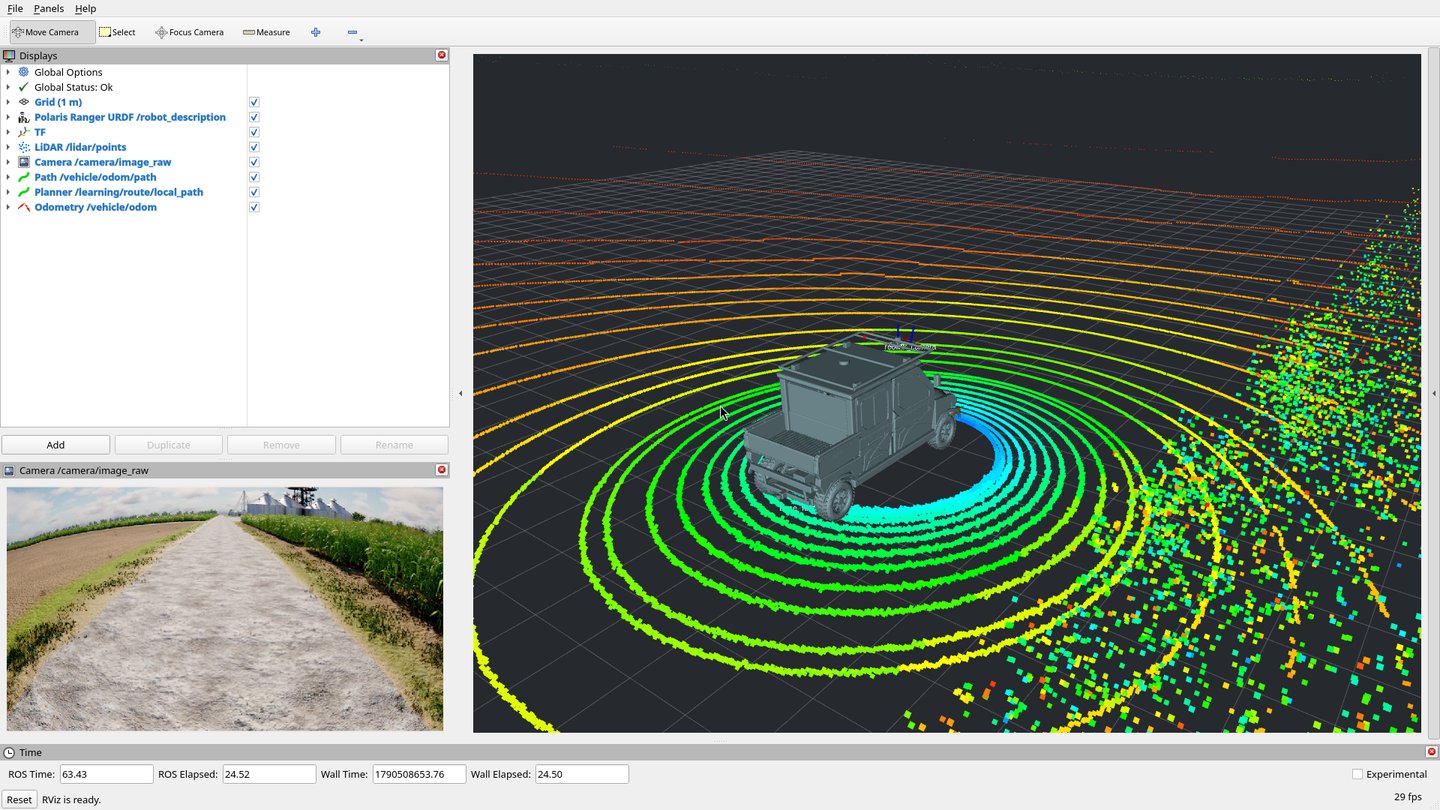
Without
purdue_ranger, the default command stops with this message:
Read the Topics#
-
In shell 3, list the topics.
Expected Result
/camera/camera_info [sensor_msgs/msg/CameraInfo] /camera/image_raw [sensor_msgs/msg/Image] /clock [rosgraph_msgs/msg/Clock] /lidar/points [sensor_msgs/msg/PointCloud2] /oxts/fix [sensor_msgs/msg/NavSatFix] /oxts/imu [sensor_msgs/msg/Imu] /oxts/velocity [geometry_msgs/msg/TwistStamped] /parameter_events [rcl_interfaces/msg/ParameterEvent] /rosout [rcl_interfaces/msg/Log] /sim/episode [acres_interfaces/msg/Episode] /sim/ground_truth/odom [nav_msgs/msg/Odometry] /sim/reset [geometry_msgs/msg/PoseStamped] /tf [tf2_msgs/msg/TFMessage] /tf_static [tf2_msgs/msg/TFMessage] /vehicle/brake/cmd [ds_dbw_msgs/msg/BrakeCmd] /vehicle/brake/report [ds_dbw_msgs/msg/BrakeReport] /vehicle/dbw_enabled [std_msgs/msg/Bool] /vehicle/disable [std_msgs/msg/Empty] /vehicle/enable [std_msgs/msg/Empty] /vehicle/gear/cmd [ds_dbw_msgs/msg/GearCmd] /vehicle/gear/report [ds_dbw_msgs/msg/GearReport] /vehicle/odom [nav_msgs/msg/Odometry] /vehicle/steering/cmd [ds_dbw_msgs/msg/SteeringCmd] /vehicle/steering/report [ds_dbw_msgs/msg/SteeringReport] /vehicle/throttle/cmd [ds_dbw_msgs/msg/ThrottleCmd] /vehicle/throttle/report [ds_dbw_msgs/msg/ThrottleReport] /vehicle/ulc/cmd [ds_dbw_msgs/msg/UlcCmd] /vehicle/ulc/report [ds_dbw_msgs/msg/UlcReport] /vehicle/vehicle_velocity [ds_dbw_msgs/msg/VehicleVelocity] -
Read one message of the simulation clock.
-
Read one message of the odometry.
Expected Result
The position is in UTM zone 16N. The vehicle does not move.
header: stamp: sec: 27 nanosec: 250001421 frame_id: utm child_frame_id: base_footprint pose: pose: position: x: 500438.12220755406 y: 4479963.951710937 z: 181.76825509173662 orientation: x: -0.01584030324089254 y: 0.009055761779796622 z: 0.7071480518888165 w: 0.7068300380638741 covariance: '<array type: double[36]>' twist: twist: linear: x: -0.0066012713313529404 y: 0.008960991459550805 z: 0.0077292981674181305 angular: x: 0.0009210506604661536 y: 0.00010572694792926153 z: 0.0006802870432511093 covariance: '<array type: double[36]>' --- -
Measure the rate of a topic. Stop the command with Ctrl+C.
Expected Result
The other rates in the same session:
Topic Rate /clock120.1 Hz /vehicle/odom,/tf,/oxts/imu99.9 Hz to 100.3 Hz /lidar/points10.0 Hz /camera/image_raw,/camera/camera_info9.9 Hz /vehicle/steering/report,/vehicle/gear/report,/vehicle/ulc/report49.8 Hz to 50.2 Hz -
Read the episode clock. This topic keeps its last message, thus the command needs two QoS options.
Send a Drive-by-Wire Command#
The Polaris starts in the gear L with the drive-by-wire off. A command has an effect only after you enable the drive-by-wire. The simulator stops a subsystem 0.1 s after its last command, as the real vehicle does. Thus you must send the command continuously.
WARNING
Make sure that the shell shows ROS_LOCALHOST_ONLY=1 when you source setup_env.sh.
Do not send the commands of this section from a shell without the fence.
-
Enable the drive-by-wire.
-
Send a speed command of 1.5 m/s at 50 Hz for 10 s.
ros2 topic pub -r 50 -t 500 /vehicle/ulc/cmd ds_dbw_msgs/msg/UlcCmd \
    "{cmd: 1.5, cmd_type: 1, enable: true}"
Expected Result
The Polaris moves to the north at 1.5 m/s. In a different shell, the ULC report shows the reference and the measured speed:
cmd_type: 1
vel_ref: 1.5
vel_meas: 1.5082000494003296
accel_ref: 0.0
accel_meas: 0.04100000113248825
coast_decel: false
ready: true
enabled: true
override_active: false
After the last command, the vehicle stops and
enabledbecomesfalsein the ULC report. -
Disable the drive-by-wire.
The node dbw_demo_driver sends such commands along a route. Refer to Nodes and Launch Files.
Call Services#
-
Read the simulation state.
-
Pause the simulation. The world stops, and the game continues to render.
-
Advance the simulation by 120 physics steps. This is 1 s of simulation time.
-
Let the simulation play again.
-
Read the ground truth of field F48 from the farm.
ros2 service call /acres/farm_state acres_interfaces/srv/FarmState \
    "{edge_band_m: 4.0, fields: [48]}"
Expected Result
response: acres_interfaces.srv.FarmState_Response(result=simulation_interfaces.msg.Result(result=1, error_message=''), header=std_msgs.msg.Header(stamp=builtin_interfaces.msg.Time(sec=176, nanosec=825009222), frame_id='world'), fields=[acres_interfaces.msg.FieldState(field=48, name='F48', crop='soybean', crop_area_m2=5098.080000000243, crushed_m2=0.0, crushed_in_band_m2=0.0, crushed_out_band_m2=0.0, harvested_m2=0.0, tilled_m2=0.0, seeded_m2=0.0, sprayed_m2=0.0, theta_mean=0.37230732510288195, pond_mean_m=0.0, rut_area_m2=0.0)], crushed_m2=0.0, harvested_kg=0.0) -
Stop the game from ROS 2. Then stop the bridge in shell 2 with Ctrl+C.
Repeat the Session with ACRES Core#
The executable core_sim runs the Polaris of ACRES Core behind the same three sockets. It needs no game and no GPU.
The bridge and all commands of shell 3 are the same.
-
In shell 1, start ACRES Core.
-
In shell 2, start the bridge with the same command as for the game.
Expected Result
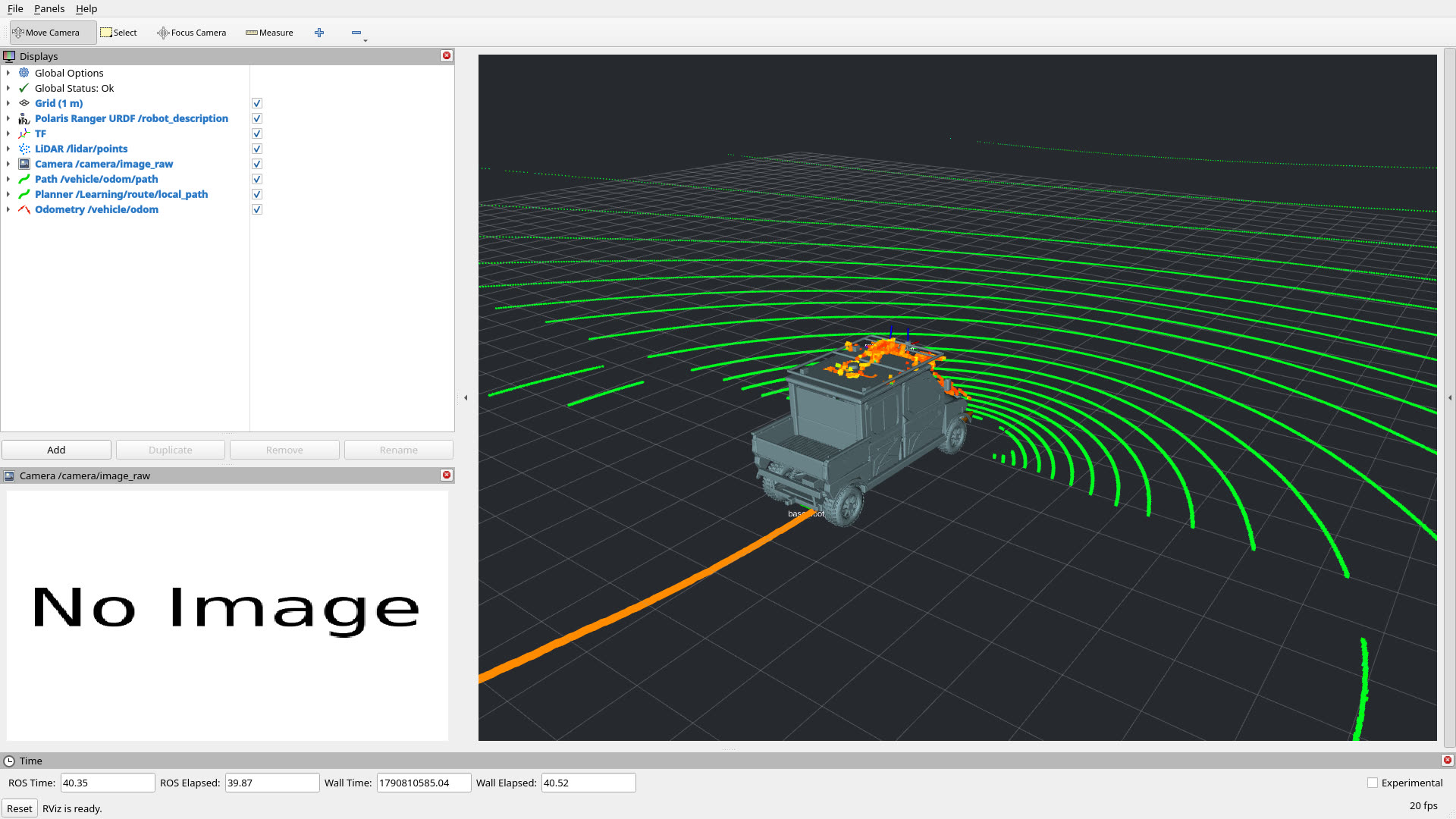
ACRES Core has no camera:
Note
With the package
purdue_ranger, one command starts the two programs:ros2 launch acres_core_sim core_sim.launch.py. Without the package, that launch file stops with the message aboutpurdue_ranger. -
In shell 3, read the episode clock.
-
Do the steps of the sections "Read the Topics", "Send a Drive-by-Wire Command" and "Call Services" again.
Expected Result
The topic list, the services and the action are the same. The rates are 120 Hz, 100 Hz, 50 Hz and 10 Hz, as with the game. The differences are these:
Item ACRES Core /camera/image_raw,/camera/camera_infoThe topics exist. No message arrives. /vehicle/odomAfter the start, the vehicle moves 24 m to the north in approximately 30 s without a command. Then it stops. /sim/episodesourceiscore.The state 3 of /set_simulation_stateIt stops core_sim. The log ofcore_simshowsACRES_SIM_CONTROL_QUIT. -
Stop
core_simwith Ctrl+C and start it again at ten times real time.
Next Steps#
- Topics: each topic with its type, rate, QoS and frame.
- Services and Actions: each service with its fields and result codes.
- Lockstep Stepping: a control loop that steps the simulation.
- Drive the Polaris Ranger: the drive-by-wire commands in detail.
- Run Several Vehicles: one bridge for all agents of a session.
- Headless Core Runs: ACRES Core without ROS 2.