Run the Packaged Game#
This page starts the packaged game with the menu, with options and without a window. It also shows where the game writes its logs, how to stop the game and how to record a video.
Before You Start#
- Build the packaged game. Refer to Build the Game.
- Install
ffmpegif you record a video. - Do the commands in the repository root.
CAUTION
Run only one instance of the game at a time. Two instances can use all the memory of the GPU.

Start with the Menu#
-
Start the game without options.
Expected Result
The game shows the menu above a slow flight over the farm. The log on the terminal contains these lines.
-
Select a mode, set the options on the tabs and select Start. First Drive gives the procedure.
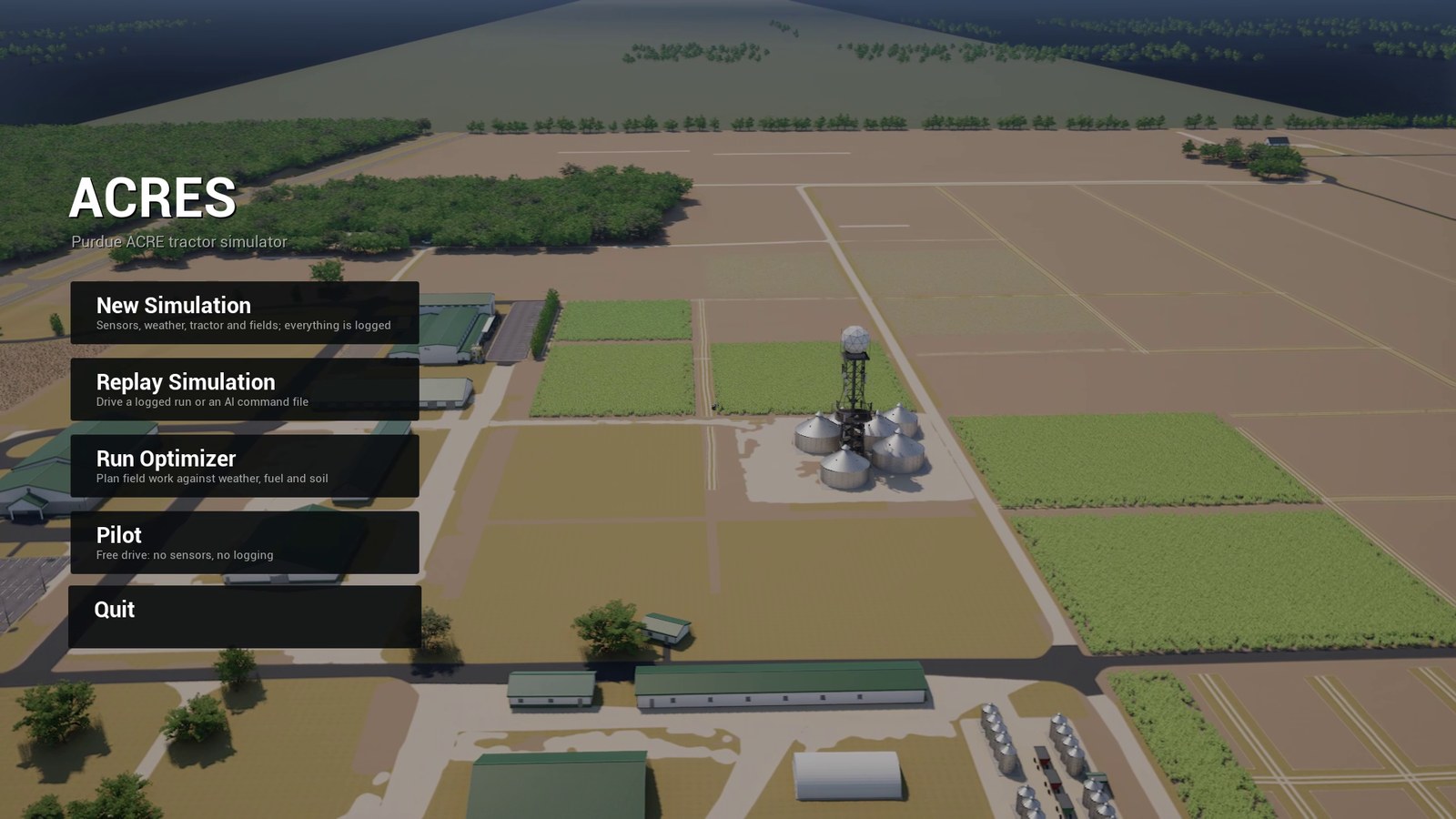
| Button | Function |
|---|---|
| New Simulation | A session with sensor recording and a session log. |
| Replay Simulation | A session that drives a logged session or a command file again. |
| Run Optimizer | Plans field work. No session starts directly. |
| Pilot | A session without sensors and without logs. |
| Quit | Stops the game. |
Start a Session Directly#
The option -VehicleDemo starts a session without the menu. Other options set the vehicle, the place and the logs.
-
Start a session at the default start position.
Expected Result
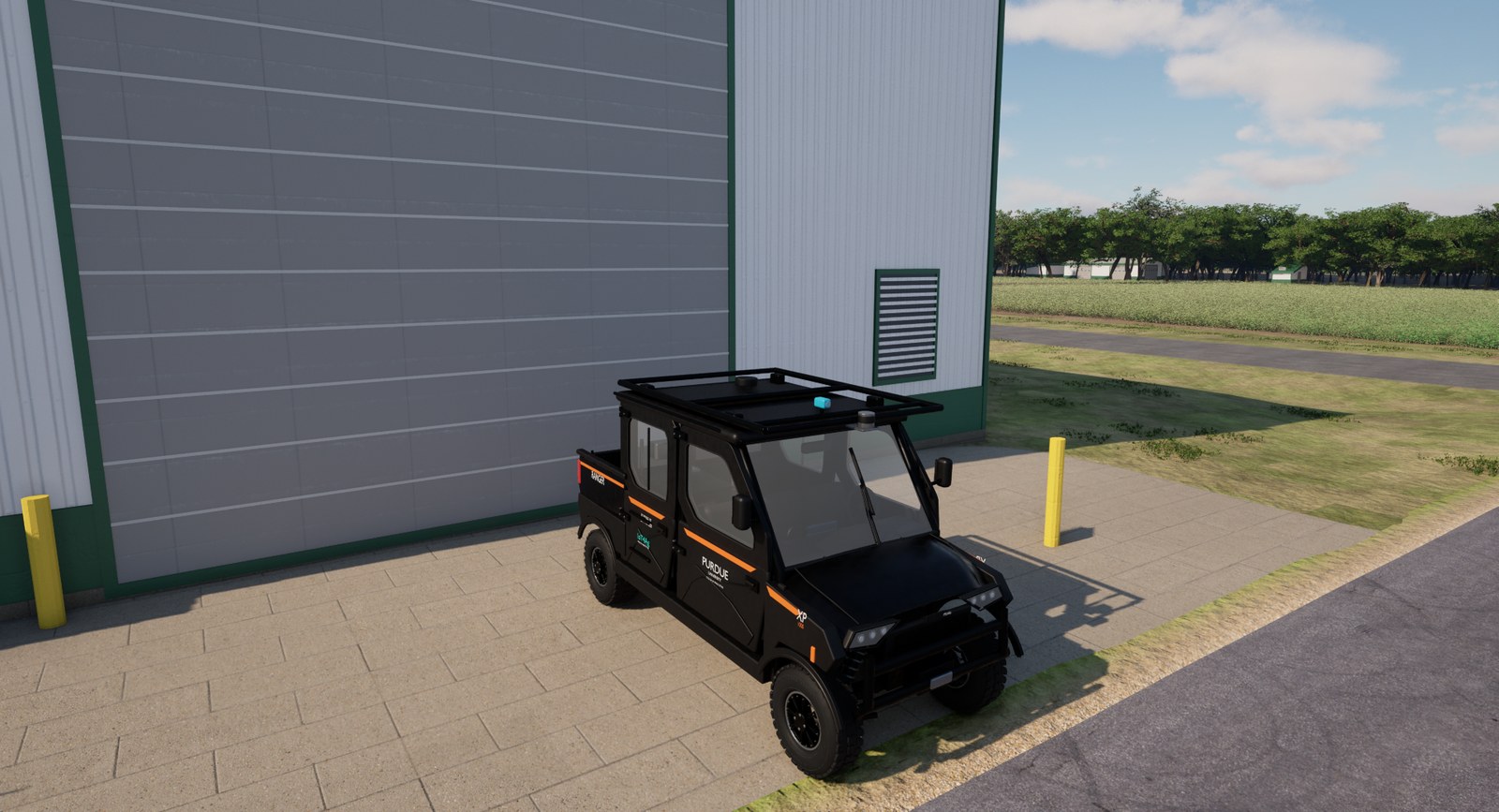
The Maxxum is in front of the ICSC garage. The log contains these lines.
ACRES_SPAWN place=spawn-icsc-garage u=474.60 v=592.20 x_m=-38.71 y_m=140.51 z_m=1.94 yaw_deg=-90.0 nudge_m=0.0 ACRES_ENVIRONMENT_READY day 1 10:00 | 22.9 C RH 62% | sun 38 deg | cloud 25% | rain 0.0 mm/h (0.0 mm) | wind 3.5 m/s from 225 | vis 15.6 km | x1 sun=1 clouds=1 fog=1 exposure=1 mpc=1 ACRES_FARM_READY patches=705070 harvester=0 signature=329FF2E32558EB9B37588580D1EC62F4A0020E2D water_cells=145924 units=36 mean_theta=0.287 max_pond_m=0.0000 ACRES_VEHICLE_READY agent=maxxum index=0 trailer=0 mass_kg=5820.0 implement=none surface=mapped physics_hz=120 ... -
Add options for a different session. These are the most frequent options.
| Option | Function |
|---|---|
-Vehicle=polaris |
Starts the Polaris. The default is the Maxxum. |
-Vehicles=maxxum,polaris |
Starts the two vehicles in one session. Refer to Run Several Vehicles. |
-Implement=chisel_plow |
Attaches an implement to the Maxxum. |
-SpawnAt=spawn-beck-lot |
Starts at a place of the file places.json. |
-VehicleSpawnU=, -VehicleSpawnV=, -VehicleSpawnYaw= |
Start at a cell of the survey grid with a yaw angle in degrees. |
-SessionLog |
Writes the session log. |
-SensorRecord |
Records the sensors. |
-VehicleOutput= |
Sets the session folder. Give an absolute path. |
Command-Line Options describes all options.
Note
The Maxxum starts with a gear engaged and the engine at idle speed. It moves slowly when you hold no key. Hold S to brake.
Run without a Window#
The option -RenderOffscreen renders the game without a window.
Use it on a workstation without a desktop, for example through SSH.
-
Start a session without a window and stop it after 60 s.
-
Examine the log.
Note
Without a window, the game ignores -ResX= and -ResY=. On the test workstation the view was 888 x 500 pixels.
Add -windowed -ForceRes -ResX=1920 -ResY=1080 to get a view of 1920 x 1080 pixels for screenshots.
The option -CaptureVideo= sets the size of the view itself.
Find the Logs#
| Output | Location |
|---|---|
| The log of the game | The terminal and Packaged/Linux/Acres/Saved/Logs/Acres.log. The game keeps the logs of earlier runs as Acres-backup-<date>.log. |
| The session folder of a menu session | Packaged/Linux/Acres/Saved/Sessions/<date>-<time>-<mode>, for example 20261002-031544-simulation. |
| The session folder of a direct session | The folder of -VehicleOutput=. The default is Packaged/Linux/Acres/Saved/Vehicle. |
| Saved menu configurations | Packaged/Linux/Acres/Saved/Configs/<name>.json. |
A menu session writes the configuration copies when the session starts. It writes the logs during the session. This is the session folder of a New Simulation session of 31 s with the default settings.
20261002-031544-simulation/
  session-config.json   environment.json   tractor.json   sensors.json   field-setup.json
  tractor.csv           session-summary.json
  farm-config.json  farm-events.csv  farm-fields.csv  farm-state.json  farm-visuals.json  farm-weather.csv
  farm-field.bin  farm-water.bin  farm-water.json  theta.f32  water-depth.f32
  sensors/episode-001/
    camera/  lidar/  camera.jsonl  lidar.jsonl  gnss.jsonl  imu.jsonl  can.jsonl  truth.jsonl  actions.jsonl
    episode.json  sensors-config.json
| Files | Content |
|---|---|
session-config.json, environment.json, tractor.json, sensors.json, field-setup.json |
The configuration copies of the session. Only the menu writes them. |
tractor.csv, session-summary.json |
The session log of the vehicle at 120 Hz and its summary. |
farm-*, theta.f32, water-depth.f32 |
The state of the farm at the end of the session: crops, soil water and events. |
sensors/episode-NNN |
The sensor episodes. |
The folder of this example uses 302 MB. The camera images use most of this space. Session Log gives the format of each file.
The game writes lines with the prefix ACRES_ at important events. Use them in scripts to examine a run.
| Log Marker | Event |
|---|---|
ACRES_RENDER_TIER |
The game selected or changed the render tier. The line gives the GPU memory and the sensor profile. |
ACRES_SESSION_START |
The menu started a session. The line gives the flags of the session. |
ACRES_SPAWN |
The vehicle got its start pose. |
ACRES_ENVIRONMENT_READY, ACRES_FARM_READY |
The weather and the farm are ready. |
ACRES_VEHICLE_READY |
One vehicle is ready. The session has one line for each vehicle. |
ACRES_SENSOR_START, ACRES_SENSOR_STOP |
A sensor episode started or stopped. The stop line gives the counts. |
ACRES_SIM_CONTROL_READY |
The simulator control channel is open. |
ACRES_DRIVE_SCRIPT_DONE |
A drive script stopped the session. |
ACRES_CAPTURE_START, ACRES_CAPTURE_DONE |
The video recording started or stopped. |
ACRES_SHELL_READY |
The inspection camera of the option -ShellView is ready. A session does not write this line. |
Stop the Game#
| Situation | Procedure |
|---|---|
| The menu | Select Quit. |
| A session that the menu started | Push Esc. Select End Simulation to go back to the menu, or Quit. |
| A session that the command line started | Push Esc. The game stops. |
| A session without a window | Push Ctrl+C in the terminal, or use timeout -s INT. |
| A scripted session | The key exit of a drive script or the option -CaptureSeconds= stops the game. The request set_state with the state 3 of the simulator control channel also stops it. |
The game closes the logs when it gets one interrupt signal. The process then ends with the exit code 130.
CAUTION
Push Ctrl+C one time only and wait. A second interrupt signal stops the game immediately.
The game then does not write session-summary.json and the farm files, and the sensor episode stays open.
Record a Video#
The game can record its own view with the HUD into an MP4 file. The recording does not need a desktop.
-
Start a session with the video options. Give an absolute path for the file.
Packaged/Linux/Acres.sh -VehicleDemo -RenderOffscreen -ResX=1920 -ResY=1080 \
  -CaptureVideo="$PWD/out/drive.mp4" -CaptureSeconds=20
Expected Result
The game stops after 20 s of recording. The log contains these lines.
ACRES_CAPTURE_ENCODER h264_nvenc ACRES_CAPTURE_START /home/user/ACRES/out/drive.mp4 1920x1080 at 30 fps, for 20 s ACRES_CAPTURE_PROGRESS 10 s, 299 frames written, 0 dropped ACRES_CAPTURE_DURATION_REACHED 20 s: closing the game ACRES_CAPTURE_DONE /home/user/ACRES/out/drive.mp4: 600 frames (20.0 s at 30 fps), 0 dropped -
Examine the file.
| Option | Default | Function |
|---|---|---|
-CaptureVideo= |
The MP4 file. The option starts the recording. | |
-CaptureSeconds= |
no limit | Stops the game after this recording time. |
-CaptureFps= |
30 | The frame rate of the file, from 1 to 120. |
-CaptureSize= |
the size of the view | The size of the video, for example 1280x720. |
-CaptureCodec= |
automatic | Selects one encoder: h264_nvenc, libx264, libopenh264 or mpeg4. |
The game uses the first encoder of this list that operates with the installed ffmpeg.
The file of this example has a size of 39 MB.
Note
The video is not a sensor recording. For camera images and LiDAR scans, refer to First Recorded Dataset.